JamesOakes01
Arch Linux Project Documentation / Write-up
This is my documentation / write-up for the Arch Linux Project for
CYB-3353-02
University of Tulsa
Fall 2024
James Oakes
Challenges, advise, and my choices
As directed in the instructions, I will start with some challenges/choices and advise I would give to others.
- Challenges: I only encountered one show stopping issue very breifly. It was when I forgot to install a network manager before exiting the live installation. Thankfully I had been taking snapshots regularly and it was easy to revert to the last snapshot and add the network manager and contine.
- Advise: Take snapshots early and often. It happened only once where I needed to revert to a previous snapshot but it could have happened a lot more. It basically costs you nothing other than a small amount of time to wait for the snapshot to finish and it is basically a save point so you don’t have to worry about messing up.
- Advise: Document well. I think I may have documented a bit excessively but it definitely helped when I needed to go back and retrace what I had already done.
- My Choices: I made several choices here: using GNOME & GDM, installing zsh as my alternative shell, installing firefox after the DE install, etc.
Step 1: Read The F*cking Manual (RTFM)
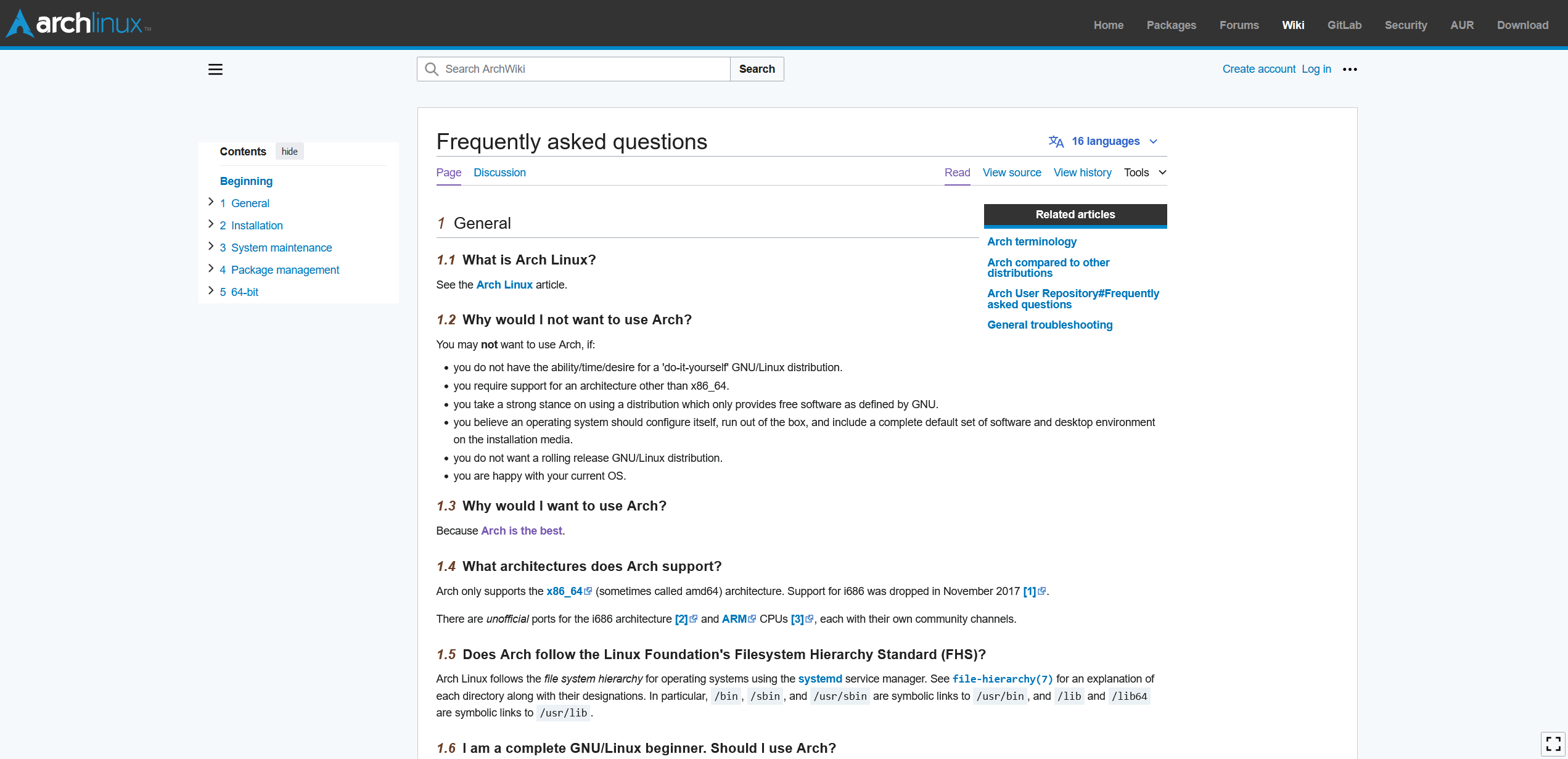
- I started with reading the Arch Linux Installation Guide which immediately brought be to the FAQ page. https://wiki.archlinux.org/title/Installation_guide
- The FAQ brought me to an Arch Linux terminology page where common terms are highlighted
Now that I have read the manual i’m ready to continue.
Step 2: Downloading an install image
- Go to https://archlinux.org/download/
- Scroll down to United States section if doing a direct download and not a torrent/magnet
- Choose a site to download from. I chose mit.edu as an educational institution, it seemed like a good choice.
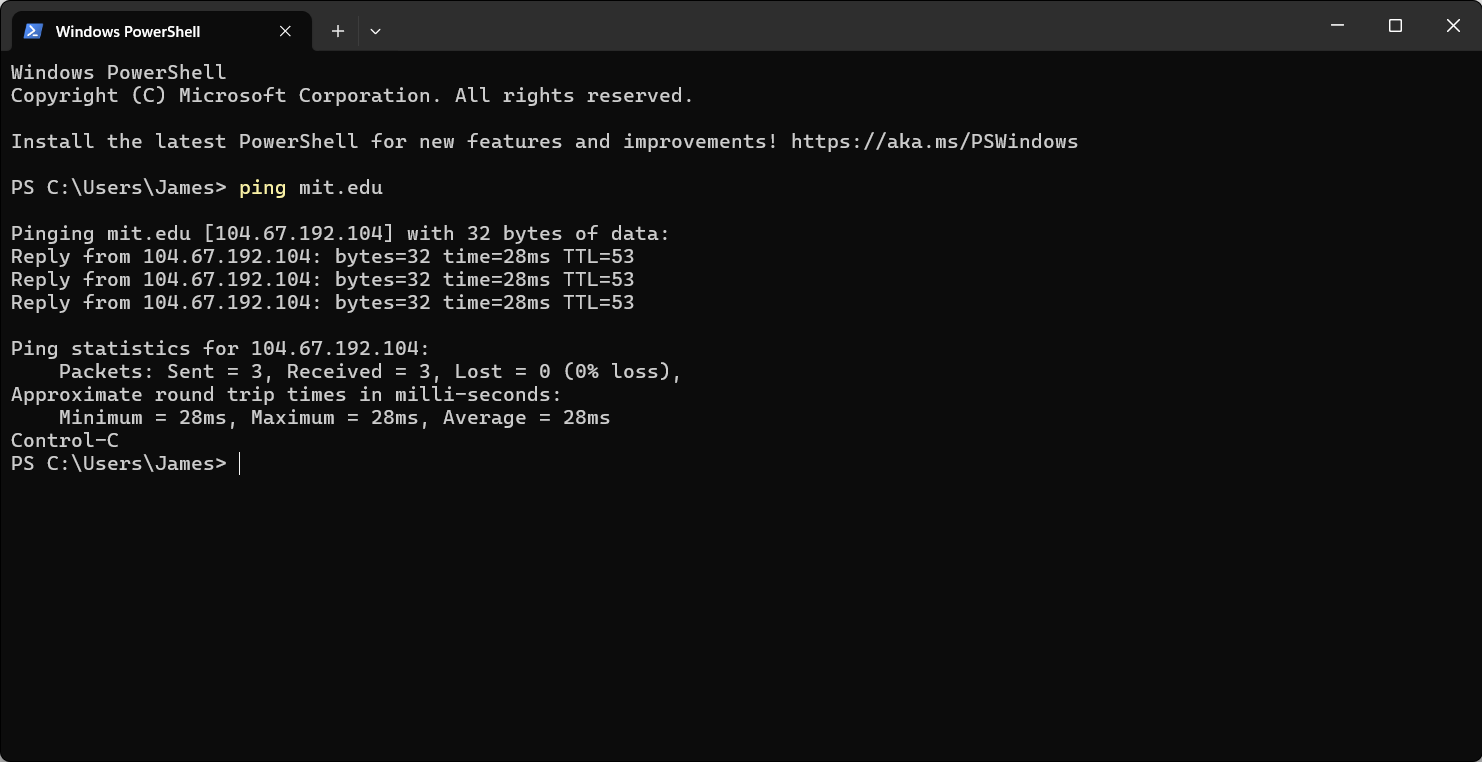
- As requested in the instrucitons, I pinged mit.edu and all packets arrived thus I had a 0% packet loss.
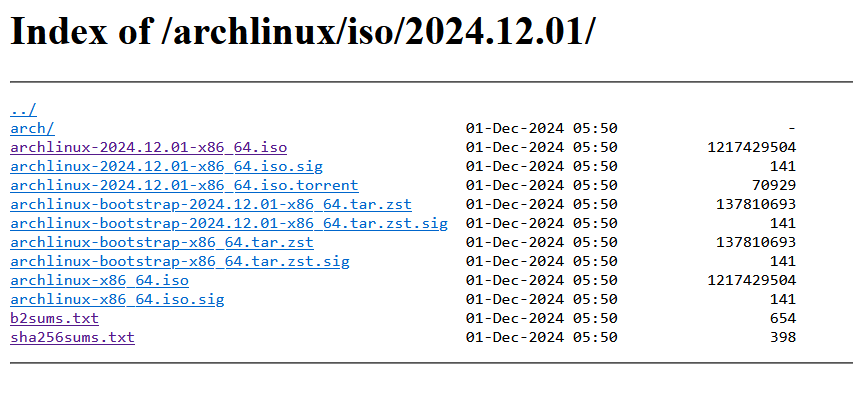
- Choose a specific file to download. I choose the regular .iso file. There were other options with .sig, .torrent, .tar.zst, .sig, etc. I’m not familiar with all of these file types so I chose the one I knew. Also several of them were compressed types and I didn’t want a compressed one.
Step 3: Verify ISO image
Verify the signature of the iso downloaded to ensure it is correct and is not a malicious download.
- Check the https://archlinux.org/download/ page to find the Checksums and Signatures. I used the SHA256 signature. Mark this down for later.
- Open a windows terminal and use the command:
CertUtil -hashfile [filepath] [type]so my exact command was:CertUtil -hashfile C:\Users\James\Downloads\iso\archlinux-2024.12.01-x86_64.iso sha256 - I then compared this hash to the one provided by ArchLinux.org to verify its authenticity.
- My signatures matched so I was ready to move on.
Step 4: Open the ISO in VMware Workstation
- Open VMware Workstation
- Click “Create a New Virtual Machine”
- Choose the ISO option
- select the iso file. VMware said it couldn’t detect which operating system was in the disc image and that I would need to specify later.
- On the next page there is a few options for the guest operating system. I left both on the default which was:
LinuxandOther Linux 5.x kernel 64-bit - On the Next page, I gave the VM the name
ArchLinux1anticipating that this would not be the last one I have to make. I also choose a location for the VM. I leave this on the default which isC:\Users\[user]\Documents\Virtual Machines\[VM Name] - Specify Disk Capacity: I allocated 20GB of disk space. I also opted to
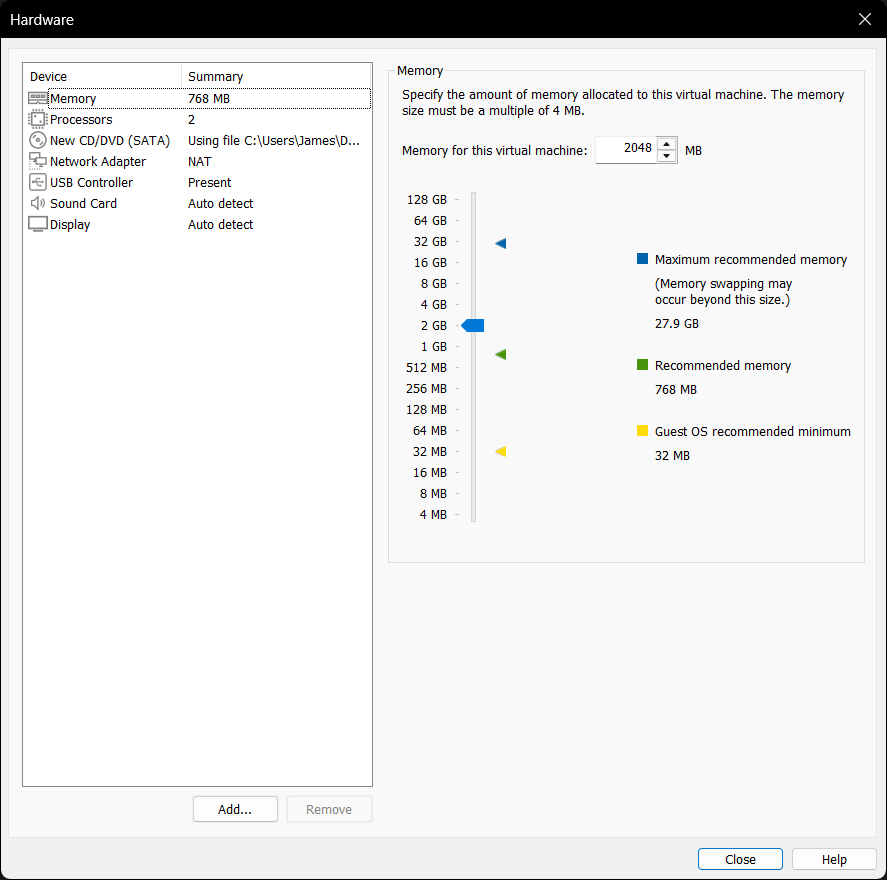
Store virtual disk as a single fileinstead ofSplit virtual disk into multiple fileswhich was NOT the default. I chose this because it seemed more simple to me. - Customize Hardware: I went to customize the hardware to increase the amount of RAM available to 2GB (2048 MB). [See customize hardware screenshot] and [see hardware screenshot]
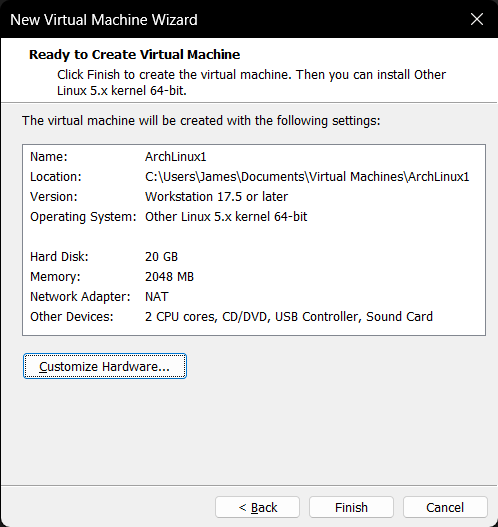
- Choose finish.
- Power on VM.
Step 5: Turning on the VM
- Just in case, take a snapshot of the VM before you power it on. I’m actually not sure if that does anything but I did it just in case.
- Choose
Power on this virual machine - I closed a popup from VMware informing me that I had side channel mitigations enabled for enhanced security
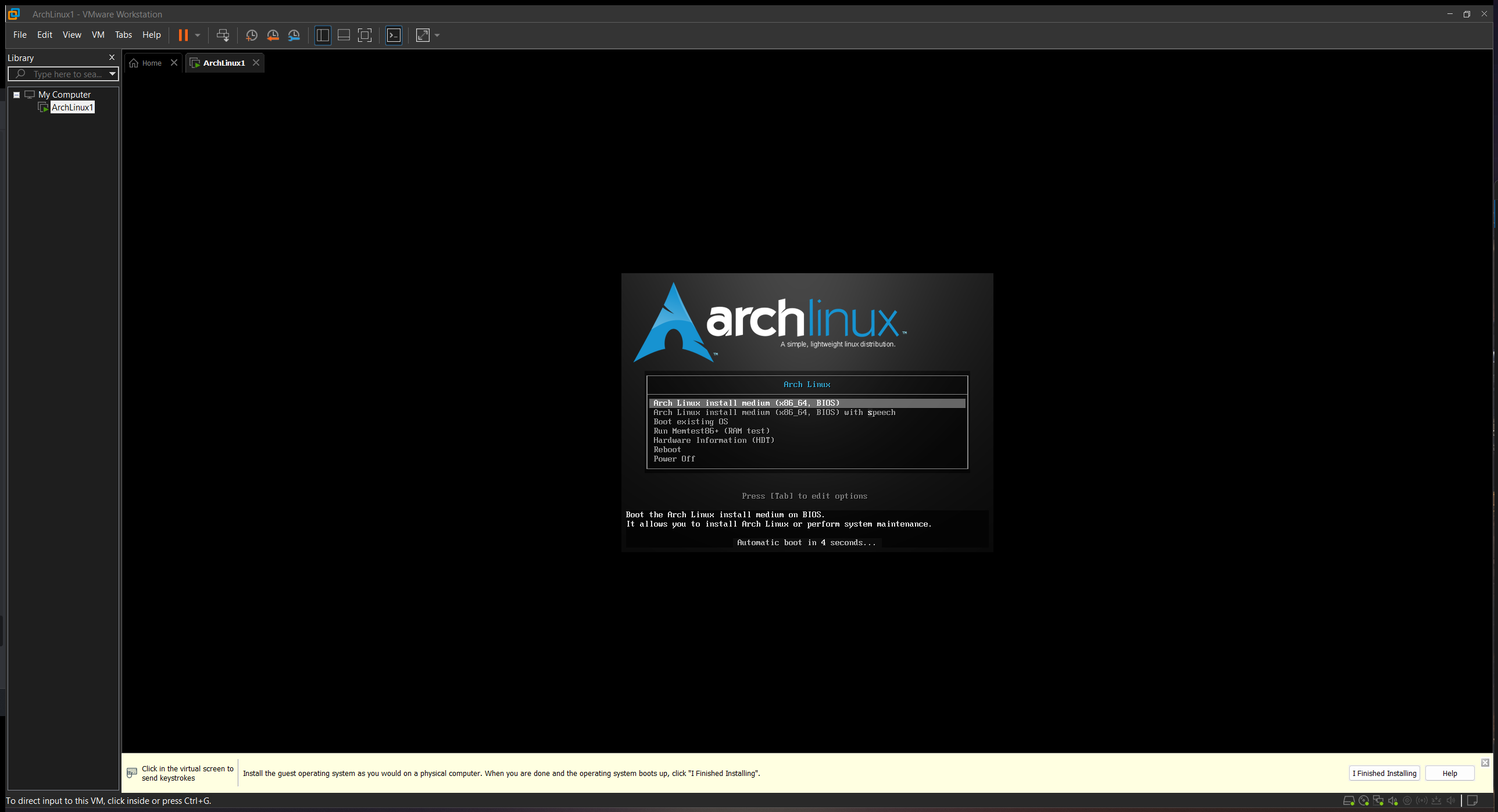
- I see the install screen for Arch Linux. I am presented with several options [see arch-boot screenshot]. I didn’t choose an option quick enough and automatic boot began.
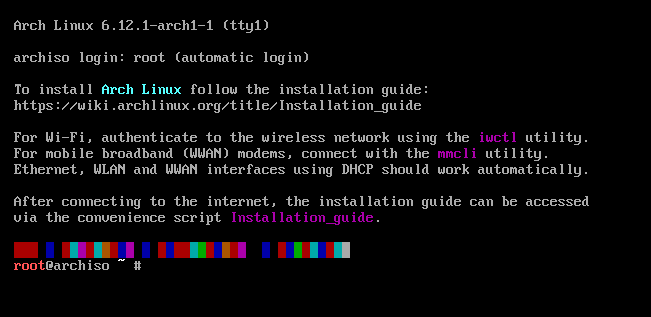
- After a few seconds of booting, I am now at a root command line. [see root-cli]
Step 6: Change to UEFI
- I noticed that I was in BIOS mode and not UEFI or EFI. As noted in the harvey instructions, I edited the .vmx file to add
firmware="efi"as line 2. As noted in the documentation, I verified my boot mode withcat /sys/firmware/efi/fw_platform_sizeand since the file didn’t exist, it meant I was in BIOS boot mode. - After I changed the boot mode, I had to choose to boot again from the install page. After getting back into arch, I checked the boot mode and it was now in UEFI mode.
Change Terminal Font
- I ran
/usr/share/kbd/consolefonts/to list all of the fonts. - I ran
setfont ter-132bas shown in the Arch documentation. this changed my font and increased its size.
Set up partitions:
- use
fdisk -lto view current partitions. Disregard any labeled loop0 as stated in the documentation. - I took a snapshot here to go back to.
- ran
ls/sys/firmware/efito confirm we are in UEFI mode.lsblkto list available disks.- use cfdisk to partition. run
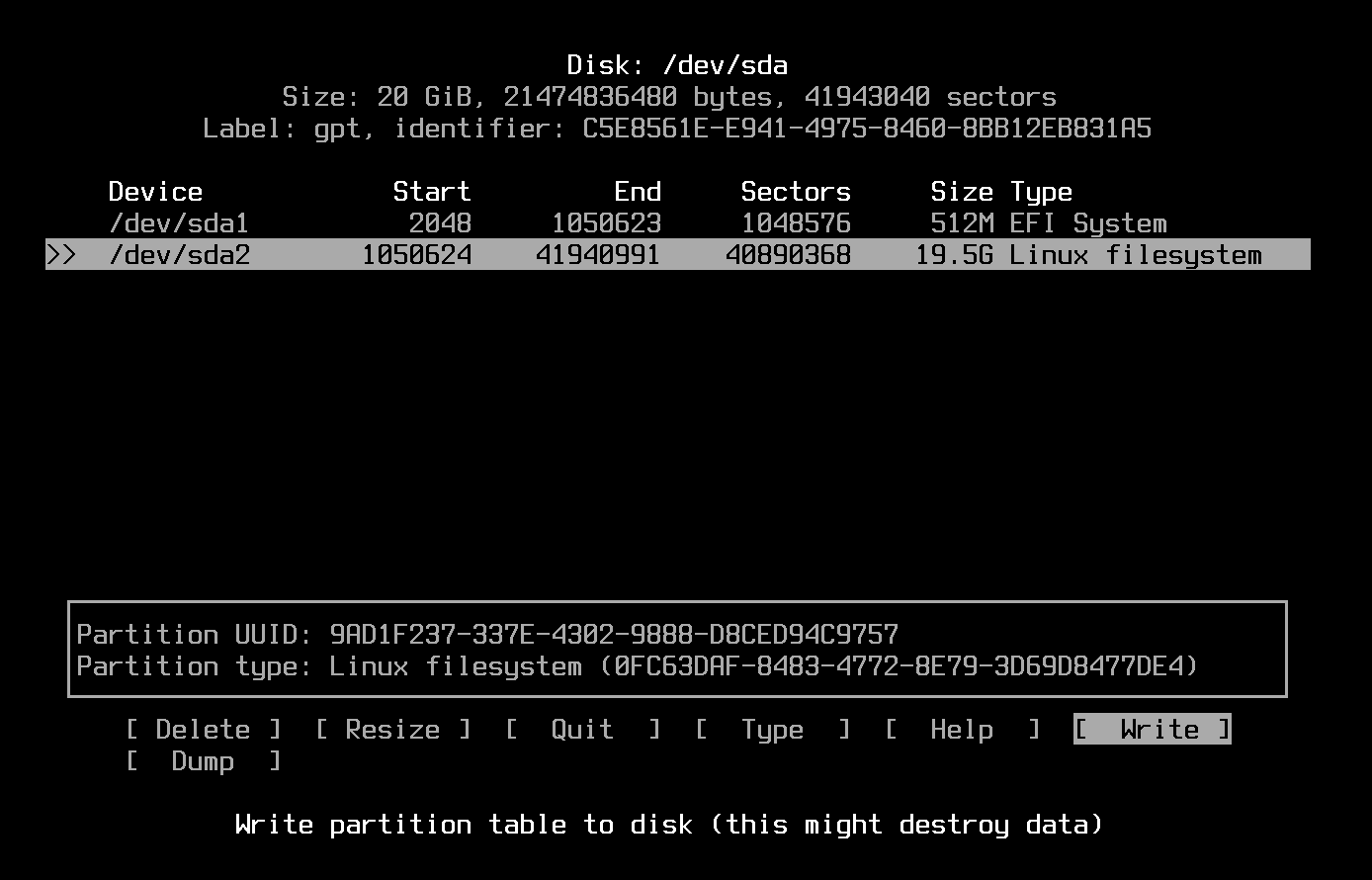
cfdisk /dev/sda - choose GPT as partition table type
- Create a partition (sda1) for EFI with 500MB. Make sure to modify the partition type to EFI
- Create another partition (sda2) with the remaining space and ensure its type is linux filesystem.
[see partition-table screenshot]
- Write partition table.
- Format each parition with different filesystems:
run
mkfs.fat -F32 /dev/sda1to format the sda1 with FAT32 andmkfs.ext4 /dev/sda2with ext4 - Mount the root partition by running
mount /dev/sda2 /mnt
Installation
- install essentail packages. run
pacstrap -K /mnt base linux linux-firmware - generate fstab file with
genfstab -U /mnt >> /mnt/etc/fstab - Change root into the new system with
arch-chroot /mnt - Set the timezone
ln -sf /usr/share/zoneinfo/America/Chicago /etc/localtime hwclock --systohc- Install nano with
pacman -S nano nano /etc/locale.genuncommenten_US.UTF-8 UTF-8- Generate locales by running:
locale-gen nano /etc/locale.confaddLANG=en_US.UTF-8- Set root password with
passwdI set mine to12345678
Install Bootloader
I am going to choose GRUB as my bootloader
pacman -S grub efibootmgr- Install GRUB for UEFI with
grub-install --target=x86_64-efi --efi-directory=/boot/efi --bootloader-id=GRUB - generate the GRUB config file with
grub-mkconfig -o /boot/grub/grub.cfg
Install NetworkManager
I originally missed this and had to go back to the live installation to fix it.
pacman -S NetworkManagersystemctl enable NetworkManager
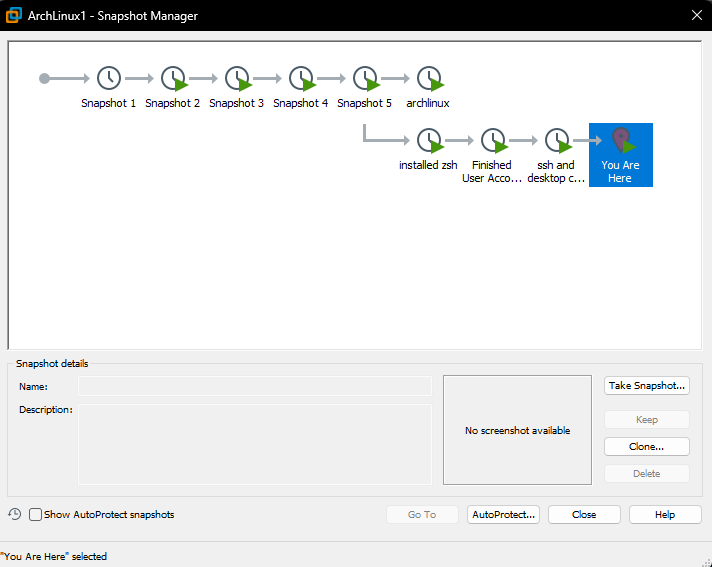
I was taking snapshots in VMware which allowed me to go back easily. By the time I finished, my snapshot tree looked like this: [see vmware-snapshots screenshot]
Installation Continued
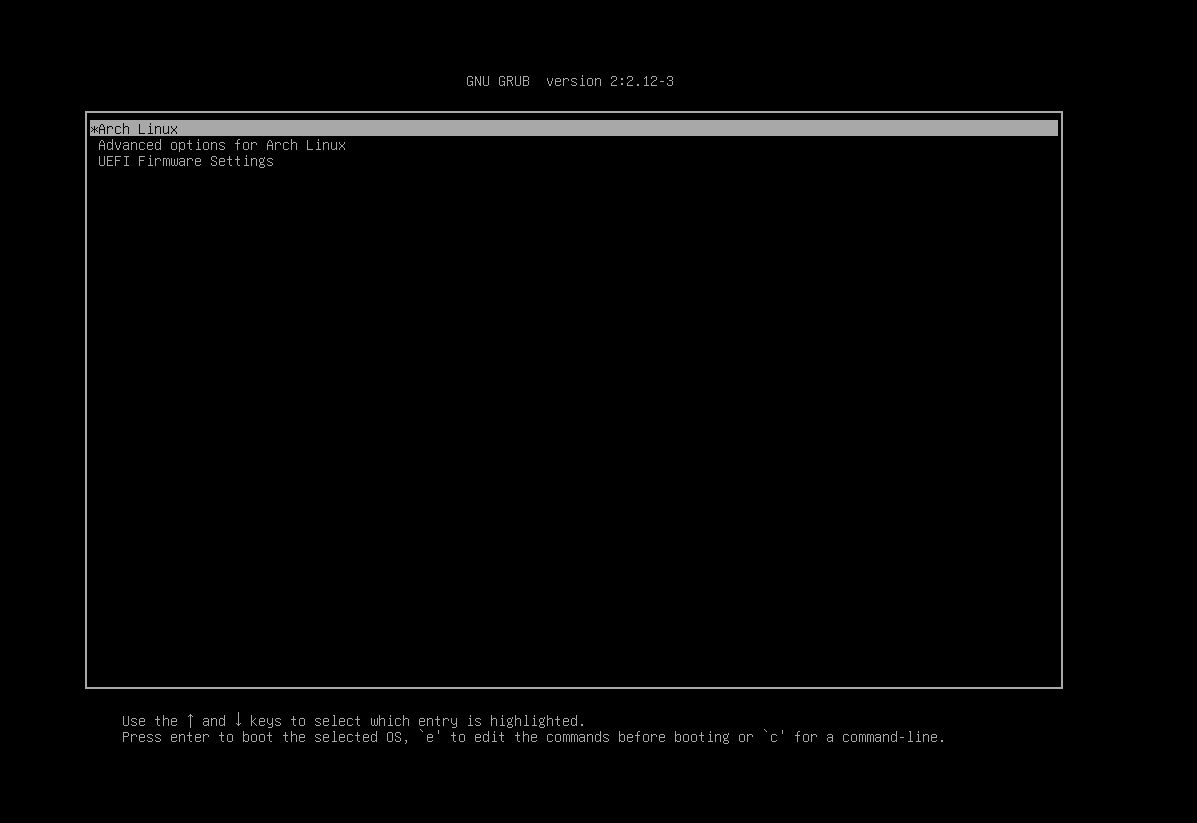
exitumount -R /mntreboot- Choose
Arch Linuxin GNU GRUB screen [see boot-arch screenshot]
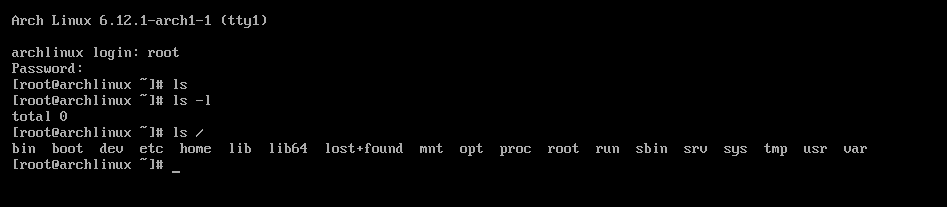
[see arch-first-boot screenshot]
Configure Networking
- created the hostname file with
nano /etc/hostnameI enteredJoArchin the file and save+closed it. I got stuck here because I had no internet. I didn’t have a network manager and couldn’t connect to the internet.
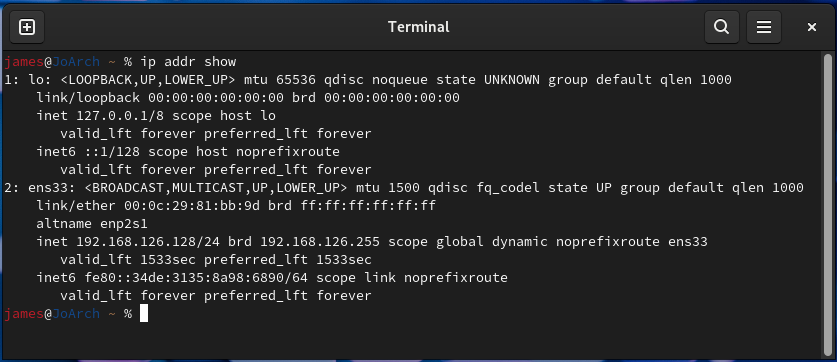
I eventually got it worked out. The network adapter ens33 is up with an ip address. [see ip-address]
Install zsh
As directed in the assignment, I will be installing a different shell other than bash. I will be installing zsh.
- I originally got stuck here because I didn’t install a network manger during the live installation.
pacman -S zsh- install which with
pacman -S which - To make zsh the default shell run
chsh -s /usr/bin/zsh[see changed-shell screenshot]
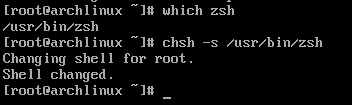
nano /etc/default/useraddmodify the SHELL variable. Change it from bash to zsh
zsh is now successfully installed and is the default shell
User Accounts and groups
Set up groups
cat /etc/groupto list all the current groups- Create a new group for the instructor users
groupadd instructors - Install sudo with
pacman -S sudo - Add instructor accounts and assign them to the instructor group
useradd -m -G instructors,wheel justinanduseradd -m -G instructors,wheel codi - Set password for the instructor accounts
passwd codiandpasswd justin. Set both to be GraceHopper1906 as a temporary password - Make the instructor accounts change their password at next login by running
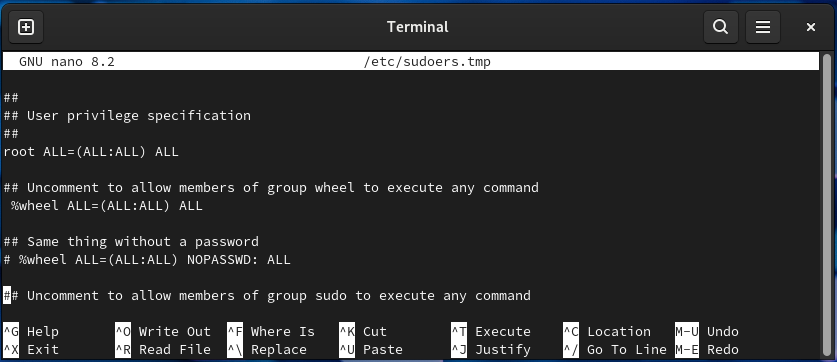
sudo chage -d 0 justinandsudo chage -d 0 codi - Edit sudoers file to allow wheel group to use sudo. first switch to root user. then run
EDITOR=nano visudothen uncomment the line for the wheel group. [see sudoers-file screenshot] - also add a user account for myself
useradd -m -G wheel james - set my own password with
passwd james
I modified the sudoers file to allow the wheel group to use sudo. I set all three of the new user accounts I made to be in the wheel group.
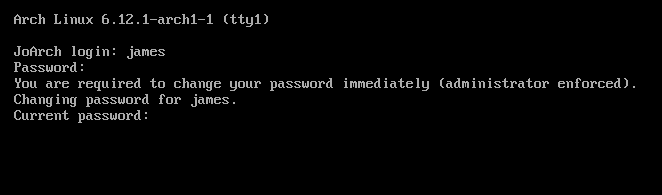
I tested the required password change on my own user account to ensure it worked. It worked great. [see password-change screenshot]
Step 6: Installing Desktop Environment GNOME
- install GNOME with
sudo pacman -S gnome - install GNOME extras with
sudo pacman -S gnome-extra - Install display server with
sudo pacman -S xorg-server xorg-xinit xorg-apps - Install display manager GDM with
sudo pacman -S gdmthen sudosystemctl enable gdm.service - reboot
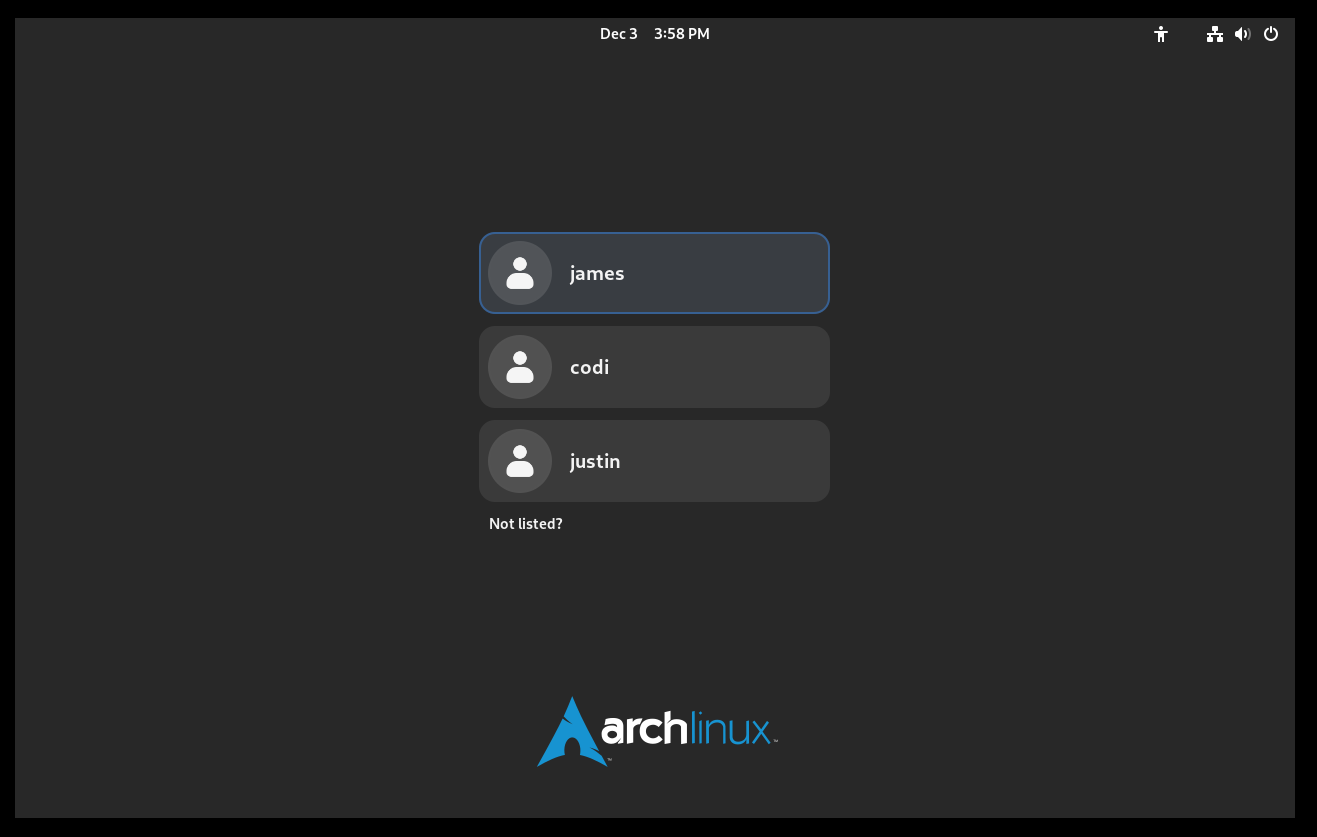
Enjoy a desktop environment!
[see desktop-environment screenshot]
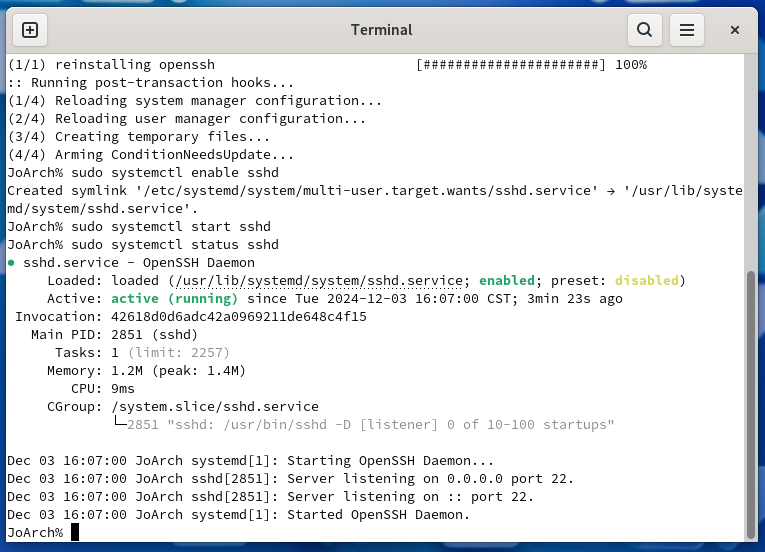
Install ssh
- Install OpenSSH by running
sudo pacman -S openssh - enable the ssh system service by running
sudo systemctl enable sshd. On thing I want to note here is that the d on the end of sshd is for daemon. It is starting the daemon for openssh. Similar to systemd, networkd, etc. - Start the ssh system service by running
sudo systemctl start sshd
SSH is now working!
[see ssh-arch screenshot]
Add color coding to terminal
- I installed firefox with
pacman -S firefox- edit the .zshrc file with
nano ~/.zshrcadd:
- edit the .zshrc file with
autoload -U colors && colors PS1=”%{$fg[red]%}%n%{$reset_color%}@%{$fg[blue]%}%m %{$fg[yellow]%}%~ %{$reset_color%}%% “
- run
autoload -U promptinit && promptinit - run
prompt -s fire - reboot
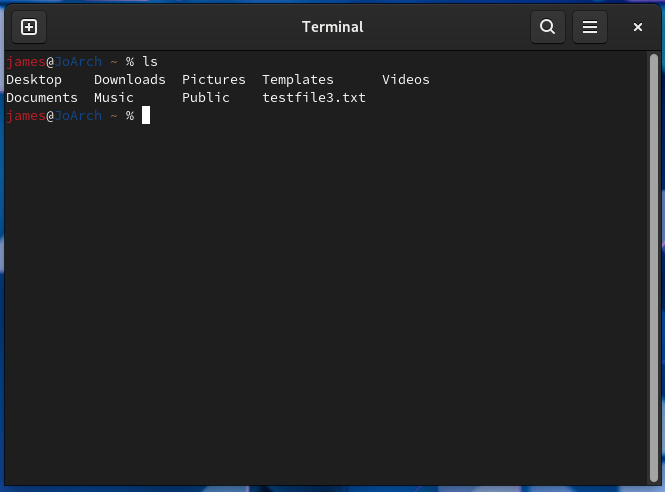
Enjoy the new colors!
[see terminal-color screenshot]
Add aliases
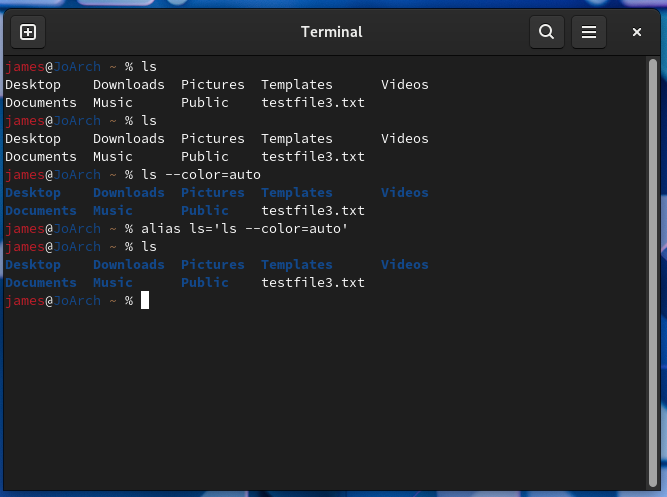
- Add one for ls so that is shows color by default. run
alias ls='ls --color=auto'[see ls-alias]
- Add an alias to mkdir command so that it automatically creates parent directory when needed. run
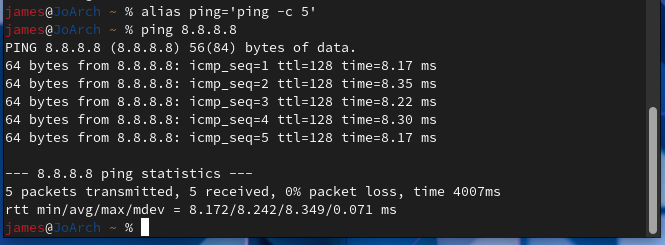
alias mkdir='mkdir -pv' - Add one to the ping command to default the number of packets to 5. run
alias ping='ping -c 5'[see ping-alias screenshot]
AUR Packages
I want to install Google Chrome from the AUR. I also want to install something to make it easier - yay. yay is one of the most popular packages on the AUR.
- Install git with
sudo pacman -S git - To be able to run makepkg we need some dependencies. Get them with
sudo pacman -S base-devel - clone the yay repo with
git clone https://aur.archlinux.org/yay.gitthen runcd yaythenmakepkg -si - install chrome using yay with
yay -S google-chrome
Arch Linux Project complete!
You’re all done! Time to celebrate and enjoy your Arch VM.